How to Get Your Website Ready for Small Business Saturday
Small Business Saturday is Nov 28, 2026. Add a section for the day, set Google hours, post your offer, mark up real events and get the free Shop Small kit.

By Paul Peery
· 9 min read
Small Business Saturday 2026 is on Saturday, November 28, two days after Thanksgiving. To get your website ready, add one short section that says what's happening at your business that day and when you're open, put the same hours on your Google Business Profile, post your offer or event there too, add event structured data only for a real in-store event (not for the sale), and download the free Shop Small marketing materials. An afternoon this month covers all of it, and the section can switch itself off when the weekend is over.
When Small Business Saturday is, and who runs it#
American Express founded Small Business Saturday in 2010 and holds it every year on the Saturday after Thanksgiving. Its Shop Small FAQ gives this year's date as November 28, 2026, and the SBA's Small Business Saturday page says the SBA has cosponsored the day since 2011.
The days around it shape what you put on your site:
| Day | Date in 2026 | What to think about |
|---|---|---|
| Thanksgiving | Thursday, Nov 26 | Many stores close; say so |
| Black Friday | Friday, Nov 27 | Online and big-box sales compete for attention |
| Small Business Saturday | Saturday, Nov 28 | Your in-store day: hours, offer, events |
| Cyber Monday | Monday, Nov 30 | Online offers, if you sell online |
Three weeks is enough time to do this calmly. Changes to listings outside your site, such as the Shop Small Map, aren't instant, so start with those and do the website second.
Step 1: Decide what's happening, and write it down once#
Before you touch the site, write one short list:
- Hours for Thanksgiving, Black Friday, Small Business Saturday and Sunday, even if some are normal.
- The offer, if there is one, in one sentence with its limits ("15% off all plants, in store, Saturday only").
- Any event: a book signing, a workshop, a tasting, story time. Give it a name, a start and end time and whether people need to sign up.
- The practical bits: parking, store pickup deadlines, whether the café or workshop is open, and gift cards.
Everything later copies from this list, so your site, Google and your social posts never disagree.
Step 2: Add a Small Business Saturday section to your site#
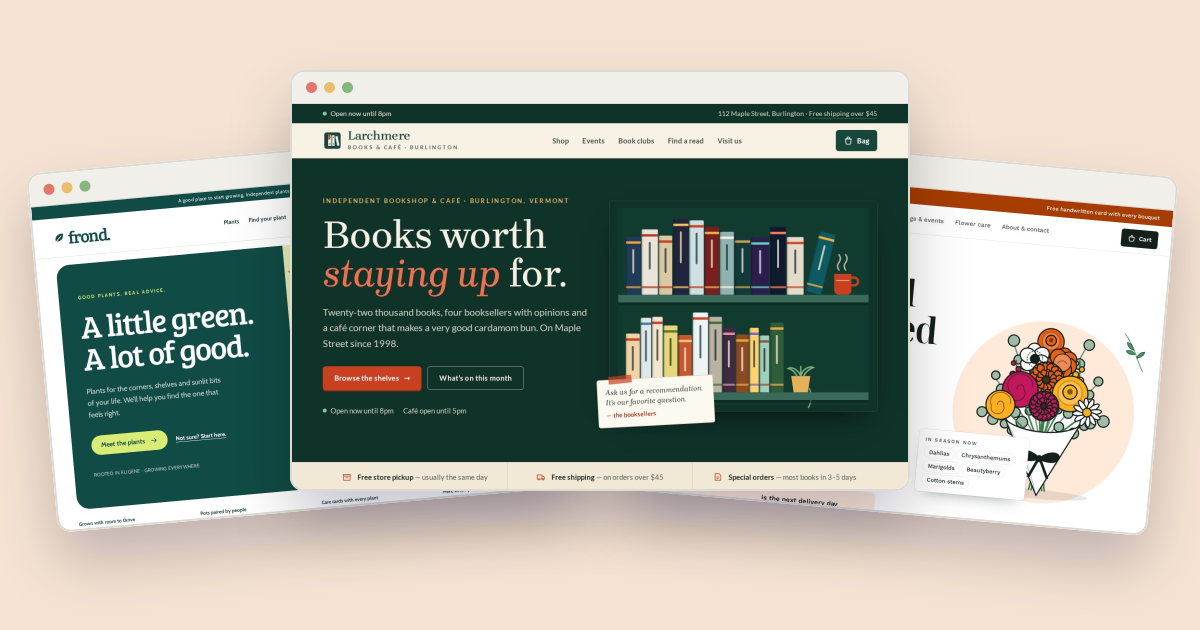
Put a short section near the top of your home page, and link to it from your visit or contact page. Keep it about the day itself: what's on, when, and how to get there. Here's one in Tailwind CSS, written for a bookstore like the fictional Larchmere Books in the Spine template:
<section id="small-business-saturday" data-show-until="2026-11-29" class="bg-amber-50 px-6 py-10">
  <div class="mx-auto max-w-3xl">
    <p class="text-sm font-semibold uppercase tracking-wide text-amber-800">
      <time datetime="2026-11-28">Saturday, November 28</time>
    </p>
    <h2 class="mt-2 text-3xl font-bold text-stone-900">Small Business Saturday at Larchmere Books</h2>
    <p class="mt-4 text-stone-700">
      Open 8 a.m. to 9 p.m. Free gift wrap all day, and a story-time reading at 10:30 a.m. in the children's corner.
    </p>
    <ul class="mt-4 list-disc pl-5 text-stone-700">
      <li>Closed on Thanksgiving, Thursday, November 26.</li>
      <li>Store pickup orders placed by noon are ready the same day.</li>
      <li>Street parking is free on Saturdays.</li>
    </ul>
    <a href="/visit.html#holidays" class="mt-6 inline-block font-semibold text-amber-900 underline">
      See all holiday hours
    </a>
  </div>
</section>
A few things make it work better:
- Write the date in words and in
datetime. People read "Saturday, November 28"; the<time>element gives software the exact date. - Say what's different from a normal Saturday. "We're open" isn't news. Longer hours, an event or a one-day offer is.
- Don't build a pop-up. A section in the page is easier to read on a phone and with a screen reader, and it doesn't get dismissed unread.
If you're also running a Black Friday or Cyber Monday sale online, give that its own page on a reusable URL, as described in how to set up a Black Friday sale, and link to it from this section rather than repeating the prices here.
Let it switch itself off#
Demos and small-business sites both suffer from offers left up for months. The data-show-until attribute above
holds the first day the section should disappear. This script hides it from that date, using your business's time
zone rather than the visitor's:
document.querySelectorAll('[data-show-until]').forEach(function (el) {
  // 'en-CA' formats dates as YYYY-MM-DD, so the strings compare in date order.
  var today = new Date().toLocaleDateString('en-CA', { timeZone: 'America/New_York' });
  if (today >= el.dataset.showUntil) el.hidden = true;
});
Change the time zone to yours. Visitors without JavaScript still see the section, so delete it from the HTML when you next update the site anyway.
Step 3: Put the Saturday hours everywhere#
Changed hours only help if they're the same on your website, your Google listing and the sign on the door.
On your site, add the four days to your hours table. If your template works out "Open now" from a schedule,
add the dates there too. In Spine, US holidays such as Thanksgiving are already rules in the HOLIDAYS list in
assets/js/main.js, so the store shows as closed that day. Small Business Saturday isn't a fixed rule (it's the
Saturday after the fourth Thursday, which isn't always the fourth Saturday), so add it to CLOSURES, which takes
one-off dates with either null for closed or the day's hours:
const CLOSURES = {
  '2026-11-28': { name: 'Small Business Saturday', hours: ['08:00', '21:00'] }
};
The open-now badge, the visit page's week view and the pickup note all read from the same function, so they
update together. Other templates keep their hours in their own scripts; the template's DOCS.md says where.
On Google, set special hours in your Business Profile. Google's help page on setting special hours says they're for holidays, special events and other changes of up to six days in a row, and recommends confirming your hours for official holidays even when they're the same as usual. Add Thanksgiving and the Saturday at least. The step-by-step clicks are in our post on adding holiday hours, along with how to update the business hours in your structured data.
Step 4: Post your offer or event on Google Business Profile#
Plenty of people see your Business Profile on Search or Maps and never open your website. Google's help page on Business Profile posts describes the post types at the time of writing:
- Offers need a title, dates and a time, and get a "View Offer" button automatically. You can add a description, a photo, a coupon code, a link and terms and conditions.
- Events need a title and start and end dates and times. Without times, Google shows the event as lasting 24 hours on those dates.
For Small Business Saturday, an offer post running Friday to Saturday works well, linked to the section from
Step 2 (https://yourdomain.example/#small-business-saturday). Use the same wording as your site, and set the end
date so it doesn't linger.
Step 5: Mark up a real event, never the sale#
If you're holding a proper event that day, a signing, a class or a kids' reading, event structured data can help it appear in Google's event results. Google's event structured data guidelines are clear about what doesn't count: don't mark up short-term discounts or purchase opportunities, business hours, or coupons and similar offers as events. "15% off Saturday only" is not an event. A 10:30 a.m. story time is.
The required properties are name, startDate and location (a Place with a name and a full address).
Add this to the page that describes the event:
<script type="application/ld+json">
  {
    "@context": "https://schema.org",
    "@type": "Event",
    "name": "Saturday Story Time: Winter Picture Books",
    "startDate": "2026-11-28T10:30:00-05:00",
    "endDate": "2026-11-28T11:15:00-05:00",
    "eventAttendanceMode": "https://schema.org/OfflineEventAttendanceMode",
    "eventStatus": "https://schema.org/EventScheduled",
    "description": "A half-hour reading for ages 3 to 7 in the children's corner. Free, no sign-up needed.",
    "location": {
      "@type": "Place",
      "name": "Larchmere Books",
      "address": {
        "@type": "PostalAddress",
        "streetAddress": "112 Maple Street",
        "addressLocality": "Burlington",
        "addressRegion": "VT",
        "postalCode": "05401",
        "addressCountry": "US"
      }
    }
  }
</script>
Note the time zone offset in startDate: -05:00 is Eastern Standard Time, which applies in late November. The
same guidelines say the name should describe the event, without prices, URLs or "limited time" wording. Check
the result with Google's Rich Results Test, linked from that page, and see our SEO docs for where
structured data lives in each template.
Step 6: Use the free Shop Small materials and map#
American Express gives away marketing materials for the day. Its materials page offers, at the time of writing, social posts (1080×1080 px), stories (1080×1920 px), digital banners and printable posters, plus a Small Business Saturday and holiday toolkit with messaging guidance and brand instructions. The Shop Small FAQ says you don't need to accept American Express cards to download them, and the materials are free; you only pay for printing. Amex also offers free printed signage through the same hub.
On your site, a downloaded banner fits nicely inside the section from Step 2. Use it as supplied, following the toolkit's brand instructions, and give it alt text that says what it says ("Shop Small on Small Business Saturday, November 28").
The Shop Small Map is different: it lists businesses that accept American Express. Under the 2026 criteria in the FAQ, a business must be in the 50 states or US territories, have up to $7 million in full-year Amex charge volume and up to 25 locations, and be in good standing; franchise brands qualify with up to 100 stores or up to 25 corporate-owned stores. Online-only businesses and services without a storefront go in the Online Directory instead. The map FAQ says changes can take two to three business days to show, so check your listing and hours this week rather than on the Friday.
Step 7: Make the weekend easy for people who can't come in#
Not everyone who wants to support you can visit on the Saturday. A few small additions catch them:
- Gift cards. A payment link and a simple form can sell them from a static site; see how to sell gift cards on your website.
- Pickup and local delivery. If your site offers store pickup, like Frond, or same-day delivery, like Petal, say in the Saturday section until what time orders go out that day.
- Delivery dates. If you ship, the next question is when the Christmas shipping deadline is; our post on showing Christmas shipping deadlines covers it.
- A way to hear about next time. A newsletter sign-up under the section turns one Saturday's visitors into people you can tell about the next event.
Step 8: Tidy up on Sunday or Monday#
When the weekend is over:
- Delete the Small Business Saturday section (or check the script hid it).
- Remove the
CLOSURESentry, or leave it: it's dated, so it won't affect other days. - Check your Google offer post has ended and your special hours have passed.
- Take down any printed posters, and keep the downloaded files for next year.
Next year's date is always the Saturday after Thanksgiving, so a note in your calendar for early November 2027 is all you need to do it again.
Summary#
- Small Business Saturday 2026 is Saturday, November 28; Thanksgiving is Thursday, November 26.
- Add one section for the day with your hours, offer, event and practical details, and let it hide itself after the date.
- Set the same hours in your site's schedule and as special hours on Google Business Profile.
- Post the offer on your Business Profile with an end date.
- Use event structured data only for a real event, never for a discount or business hours.
- Download the free Shop Small materials, and if you accept American Express, check your Shop Small Map listing this week.

About the author
Paul Peery
Founder of Freeframe
Paul Peery runs Freeframe, which publishes complete multi-page website templates in HTML, Next.js, Astro and WordPress, and writes about getting small websites built, launched and kept up to date.