How to Install a WordPress Block Theme (Step by Step)
Upload and activate a WordPress block theme, learn the Site Editor (templates, patterns, styles and menus) and update the theme without losing your work.
· 8 min read
To install a WordPress block theme, go to Appearance > Themes > Add New Theme > Upload Theme, choose the theme's .zip file (don't unzip it), click Install Now, then Activate. After that you design the whole site, header and footer included, in Appearance > Editor, the Site Editor. This guide walks through the install, the parts of the Site Editor you'll actually use, and how to update the theme later without losing your work.
Before you start#
Check your WordPress version. Block themes need a reasonably recent WordPress, and each theme states its minimum in its readme. The Freeframe themes need WordPress 7.1 or later and PHP 7.4 or later. You'll see your version under Dashboard > Updates. If you're behind, back up and update WordPress first.
Know what changes. A block theme replaces the old Customizer, Widgets and Menus screens with the Site Editor. Once you activate one, the Appearance menu shows Editor instead. Your posts, pages and media are untouched; only the design changes. Widgets from a classic theme don't carry over, so note anything important in your sidebar or footer before switching.
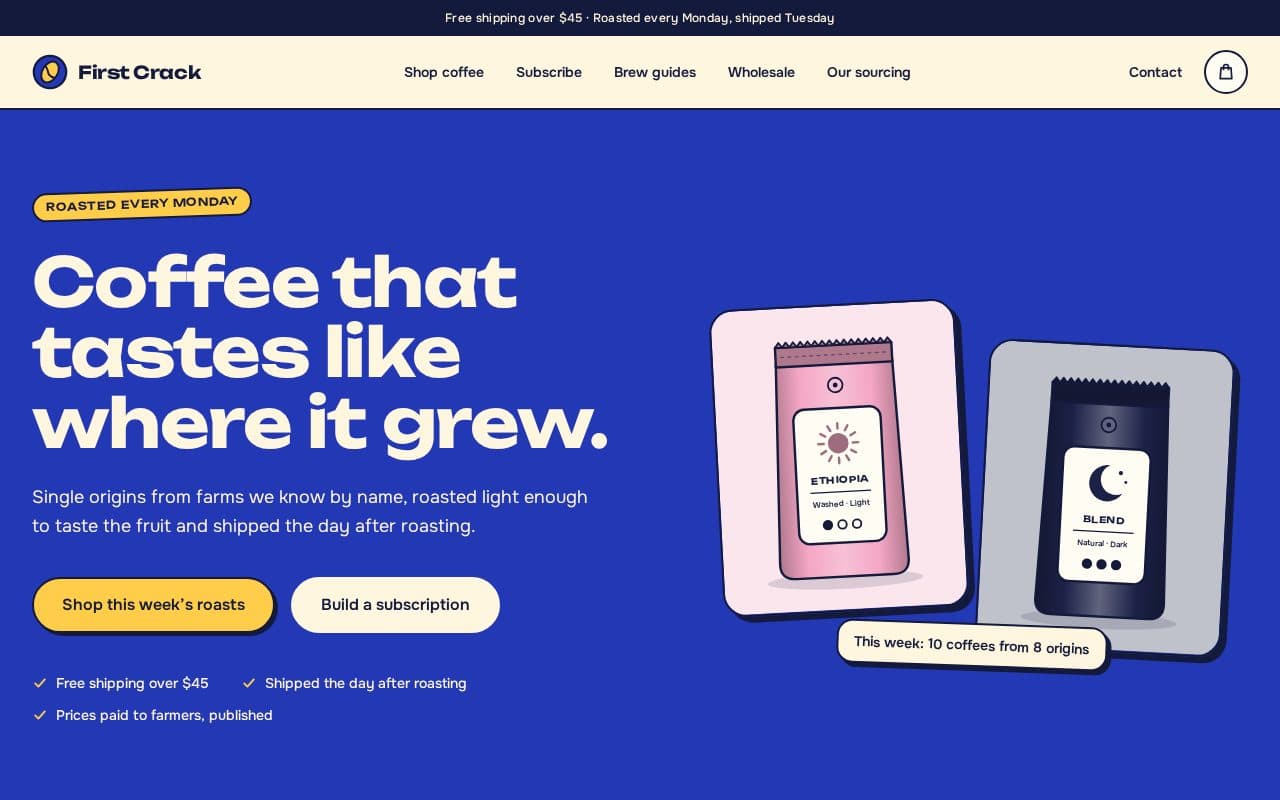
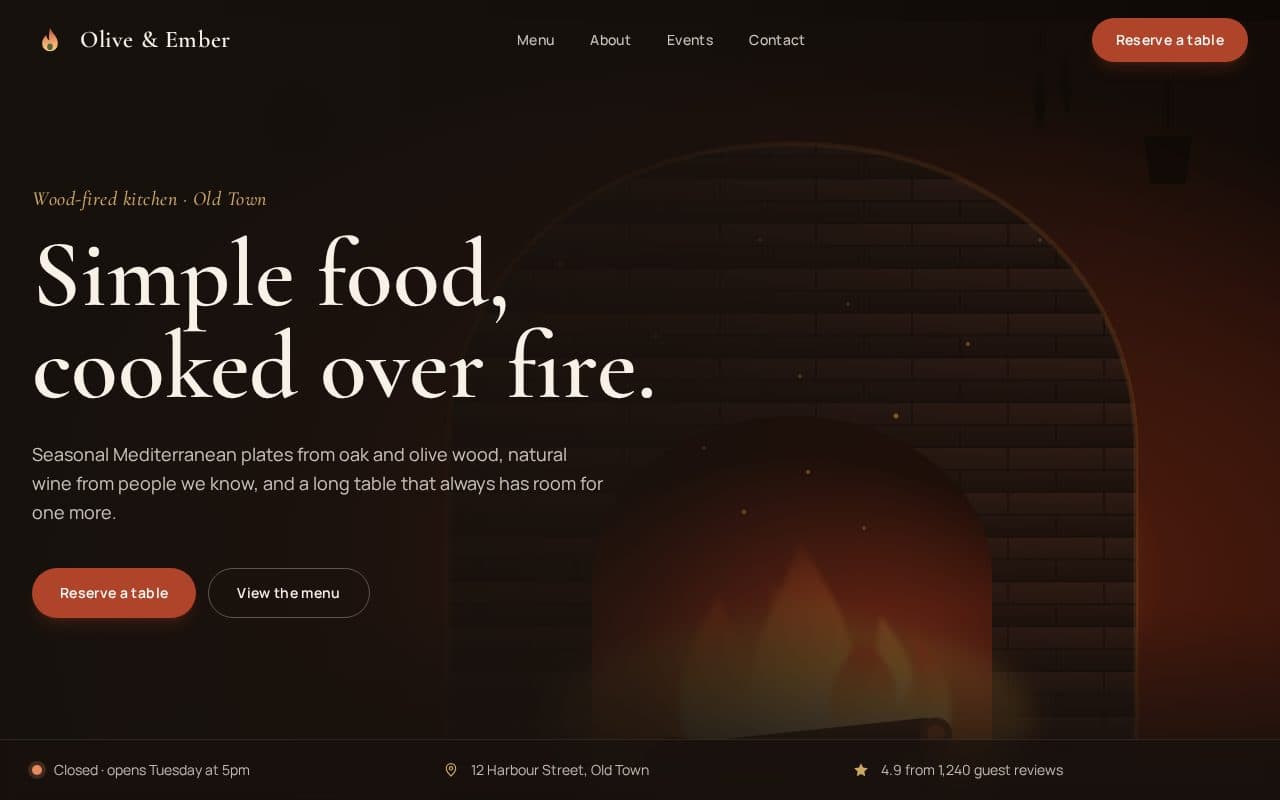
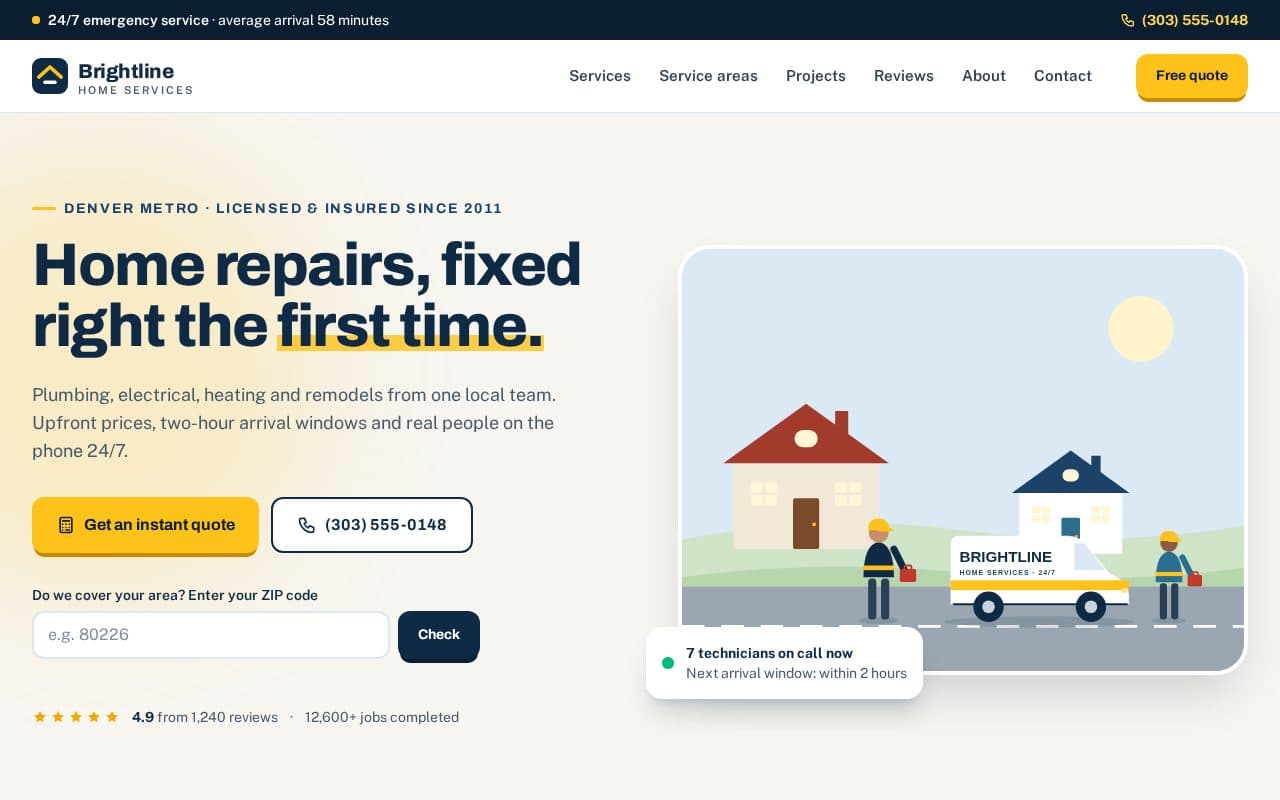
Try it first if you can. WordPress Playground runs a complete WordPress site in your browser with nothing to install. On every Freeframe template page, Try in WordPress Playground opens the theme with its pages already set up, so you can click around the Site Editor before touching your real site.
Step 1: Download the zip and keep it zipped#
Download the theme. WordPress installs the .zip file itself, so don't extract it.
One trap: Safari on a Mac may unzip downloads automatically ("Open safe files after downloading" in its settings). If you end up with a folder, either turn that option off and download again, or compress the folder yourself. Make sure the zip contains the theme folder (or its files) directly, with style.css inside, and not another zip.
Step 2: Upload and activate#
- In your WordPress admin, go to Appearance > Themes.
- Click Add New Theme at the top, then Upload Theme.
- Click Choose File, pick the zip and click Install Now.
- When WordPress says the theme was installed, click Activate. Or click Live Preview to open the theme in the Site Editor with your own content before activating it.
If you see an error instead:
- "The link you followed has expired" usually means the file is larger than your host's upload limit. Ask your host to raise
upload_max_filesizeandpost_max_size, or upload the extracted theme folder towp-content/themes/with SFTP or your host's file manager, then activate it in Appearance > Themes. - "The theme is missing the style.css stylesheet" means the zip has the wrong structure: usually a zip inside a zip, or the whole download package instead of the theme. Use the theme zip itself.
- "Requires WordPress version X" or "Requires PHP version X" means your site is older than the theme supports. Update WordPress, or ask your host to switch PHP versions.
Step 3: Create the pages (Freeframe themes)#
A freshly activated block theme shows its design on your existing content, but it doesn't create pages for you. Most themes expect you to build pages yourself from their patterns.
Freeframe themes add a one-click setup instead. After activation a notice appears at the top of the admin, and the theme adds a screen under Appearance named after it (for example Appearance > Roast setup). It lists every page the template has and whether it already exists. Click Create the demo pages and it:
- creates each page from the theme's page patterns, with all the sections in place,
- sets Home as the front page in Settings > Reading,
- builds the header menu ("Main menu").
It never overwrites a page that already exists with the same slug, so it's safe to run on an existing site or to click twice. If a page you expected is empty because a page with that slug already existed, open the page and insert its layout from Patterns in the block inserter.
Step 4: Find your way around the Site Editor#
Open Appearance > Editor. The left panel lists the main areas. In WordPress 7.1 you'll see:
- Identity: site title, tagline, logo and site icon.
- Styles: colours, fonts and spacing for the whole site.
- Pages: your pages, editable right here.
- Navigation: your menus.
- Patterns: reusable sections, plus template parts such as the header and footer.
- Templates: the layouts WordPress uses for each type of page.
Here's what each one is for and when to use it.
Templates#
A template is the layout for a type of content: single posts, pages, the blog index, search results, the 404 page. Editing a template changes every page that uses it, so it's the place for structural changes ("add a breadcrumb above every post"), not for one page's text.
To edit one, open Templates, pick it, and click the pencil. To change just one page's content, edit the page instead, in Pages or the normal page editor.
In Freeframe themes, pages use a template without a title block, because each page pattern starts with its own heading. For a plain text page such as a privacy policy, choose the Page with title template in the page's settings.
Template parts#
Template parts are the repeated areas shared by templates, mostly the header and footer. Find them under Patterns, in the template parts section. Edit the header once and every page updates. When you save, WordPress lists everything you changed (templates, template parts, menus) so you can confirm each one.
Patterns#
Patterns are ready-made groups of blocks: a hero, a pricing table, a team grid. You insert them from the block inserter (the + button) under Patterns, then edit them like any blocks.
Two things worth knowing:
- Theme patterns are copied in. Once a pattern is in a page, it's ordinary blocks. Editing it doesn't change the pattern or other pages.
- Synced patterns are different. If you create a pattern and mark it as synced, every copy updates when you edit one. Use that for things like a call-to-action band repeated across pages.
Freeframe themes group their patterns by template: sections under the template's name (for example Roast) and whole-page layouts under Roast pages.
Styles (global styles)#
Styles is where you rebrand. Changes here apply site-wide.
- Colors > Palette changes the theme's colours. In a well-built block theme, buttons, links and backgrounds read from the palette, so changing the brand colour recolours everything that uses it.
- Typography sets fonts and sizes. Fonts opens the Font Library, where you can install a Google Font or upload your own and then pick it for text or headings.
- Blocks lets you style every instance of a block type at once, such as all buttons.
- The three-dot menu has revisions (go back to an earlier version of your styles) and reset (return to the theme's defaults).
Check contrast after changing colours: body text needs at least 4.5:1 against its background. The accessibility guide explains what else to keep an eye on.
Navigation (menus)#
Menus in block themes are Navigation blocks, usually in the header template part. Edit the menu itself in Navigation: add pages, reorder links by dragging, rename them.
A Navigation block that isn't pointed at a specific menu shows the most recently created one. If the wrong menu appears, select the Navigation block in the header and choose the right menu in its settings. Some themes, including the Freeframe ones, have two Navigation blocks (desktop and mobile); set both.
Site title, logo and icon#
Set the site title and tagline in Settings > General or Identity in the Site Editor. The site icon (favicon) is set there too: a square image of at least 512 × 512 pixels.
Step 5: Edit your pages#
Open any page from Pages. Click text to change it, select an image to replace it, and open List View (the stacked-lines icon at the top) to select whole sections, move them or delete them. To add a section from another page, insert it from Patterns.
Interactive features such as calculators, filters and forms are often kept in Custom HTML blocks, so they keep working exactly as designed. You can edit their text in the block's HTML view, but keep their id and data- attributes. Each Freeframe theme's documentation lists these blocks and what is safe to change.
Forms in a theme rarely send email on their own. Connect them to a form service or swap in a form plugin before launch; see forms and backends.
Updating the theme#
Themes from the WordPress.org directory update from Dashboard > Updates. Themes you uploaded yourself, including Freeframe themes, are updated by uploading the new zip:
- Back up your site (files and database). Most hosts have a one-click backup.
- Read the theme's changelog to see what changed.
- Go to Appearance > Themes > Add New Theme > Upload Theme and upload the new zip.
- WordPress notices the theme is already installed and shows a comparison of the current and uploaded versions. Click Replace installed with uploaded.
What happens to your work:
- Pages and posts keep their content. Patterns were copied into them, so an updated pattern doesn't change existing pages.
- Style changes made in Styles are saved in the database and stay.
- Templates and template parts you edited in the Site Editor are also saved in the database, and they take priority over the theme's files. That protects your edits, but it also means you won't see the theme's improvements to those templates. To get them, reset that template to the theme's version (from its actions menu in Templates or Patterns) and redo your change.
- Edits to the theme's files (PHP, CSS, JavaScript) are lost, because the files are replaced. Put file changes in a child theme instead.
FAQ#
Do I need a page builder plugin?#
No. The Site Editor does what page builders used to do for layout. Adding a page builder on top of a block theme usually means two systems fighting over the same page.
Can I switch back to my old theme?#
Yes. Activate it again in Appearance > Themes. Your content is still there. Customisations you made in the Site Editor are tied to the block theme and come back if you reactivate it later.
Why does my menu or header look different on the front end?#
Usually because it was edited in a page rather than in the template part, or the Navigation block points at a different menu. Edit the header under Patterns and check which menu each Navigation block uses.
Next steps#
- Browse the WordPress block themes and open one in Playground.
- Follow Getting started for the short version of the install.
- Before going live, run through the website launch checklist.