How to Customise a Tailwind CSS Template
Change brand colours in the @theme block, swap fonts, logo and favicon, rebuild the CSS with the Tailwind v4 CLI and set up dark mode, step by step.
· 7 min read
In a Tailwind CSS v4 template, the brand lives in one place: the @theme block of the main CSS file. Change the colour and font variables there, rebuild the CSS (in a plain HTML template, npm run build), and every button, link and heading picks up the new values. Then replace the logo, favicon and social image, and search the project for the demo brand name to swap in your own words. This guide goes through each step in order, with the details that trip people up.
The examples use Freeframe templates, but the same approach works for any Tailwind v4 project.
Step 1: Find the Tailwind source file#
Tailwind v4 is configured in CSS, not in a tailwind.config.js file. Look for the file that starts with @import "tailwindcss";:
| Template type | Tailwind source | Compiled output |
|---|---|---|
| Plain HTML | src/input.css |
assets/css/style.css |
| Next.js | src/app/globals.css |
Built by Next.js |
| Astro | src/styles/global.css |
Built by Astro |
In a plain HTML template, never edit the compiled file. It's generated from the source and gets overwritten every time you rebuild.
If you find a tailwind.config.js and no @theme block, the project is on Tailwind v3, and the steps for colours and fonts are different. Most tutorials written before 2025 describe v3.
Step 2: Change the brand colours#
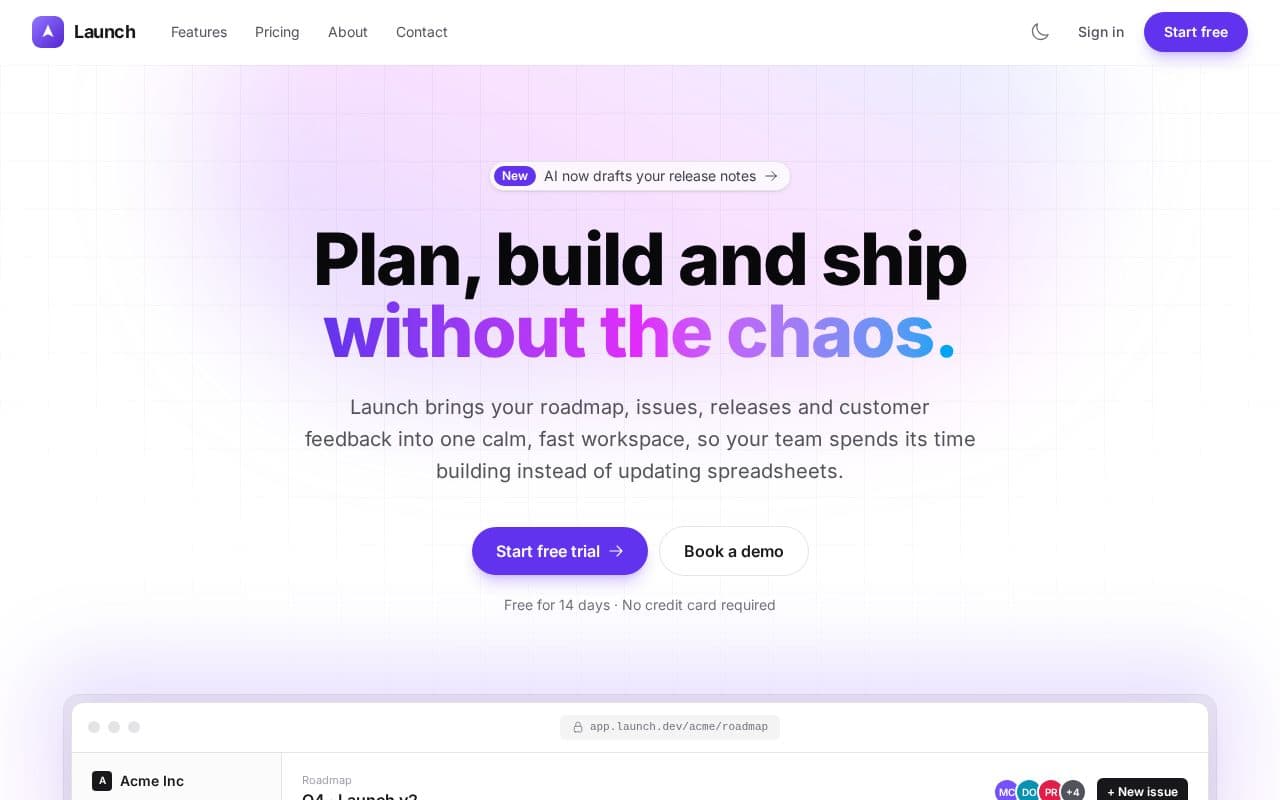
Open the source file and find @theme. Here's the one from the Launch template:
@theme {
  --font-sans: "Inter", ui-sans-serif, system-ui, -apple-system, "Segoe UI", Roboto, sans-serif;

  --color-brand-50: #f3f1ff;
  --color-brand-100: #e9e5ff;
  /* ...200 to 900... */
  --color-brand-600: #6233ee;
  --color-brand-950: #22105f;
}
Every --color-* variable becomes a set of utilities: --color-brand-600 gives you bg-brand-600, text-brand-600, border-brand-600 and so on, plus a CSS variable var(--color-brand-600) you can use in custom CSS. Change the value, rebuild, and everything using that colour updates.
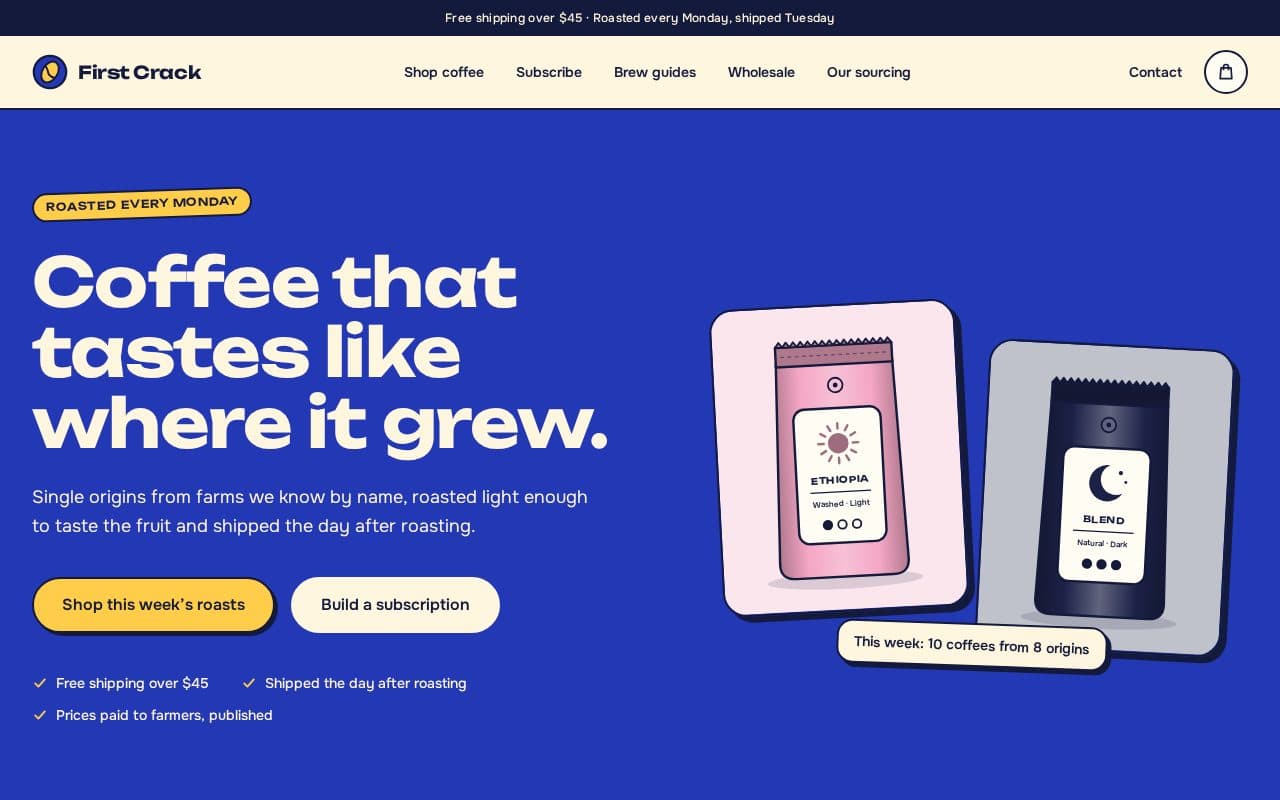
Templates name their colours differently. Launch uses a brand scale from 50 to 950; Roast uses named colours instead:
@theme {
  --color-cobalt: #2338b5;      /* brand */
  --color-cobalt-dark: #18268a;
  --color-sun: #ffcd4a;         /* highlight blocks, stickers */
  --color-navy: #141a3c;        /* text, outlines */
}
Keep the names and change the values. Renaming brand to blue means finding and replacing every brand- class in every page, which gains you nothing.
Making a full scale from one colour. If the template uses a 50 to 950 scale, you need eleven shades, not one. Put your main colour at 500 or 600 (check which shade the template uses for buttons) and generate the lighter and darker steps with a palette generator, or copy one of Tailwind's default palettes that's close to your brand.
Check contrast. Buttons with white text on brand-600 need at least 4.5:1 contrast for normal-size text. If your brand colour is light, like yellow or pale green, it may need dark text, or a darker shade for buttons. Your browser's developer tools show the contrast ratio when you inspect an element.
Removing Tailwind's default colours. Variables you add in @theme sit alongside Tailwind's built-in palette (zinc, red, blue...). Templates often use those for greys, so leave them. If you really want only your colours, --color-*: initial; at the top of @theme clears the defaults, but then every default colour class in the markup stops working.
Step 3: Change the fonts#
Two things work together: the font file has to load, and @theme has to name it.
Plain HTML with Google Fonts:
-
Pick a font on Google Fonts and copy its
<link>tag. -
Replace the existing Google Fonts
<link>in the<head>of every page. -
Update the font stack in
@theme:css@theme { --font-sans: "Source Sans 3", ui-sans-serif, system-ui, sans-serif; --font-display: "Fraunces", ui-serif, Georgia, serif; } -
Rebuild the CSS.
--font-sans is the default for body text. Extra stacks such as --font-display become utilities (font-display) used on headings.
Next.js: fonts load in src/app/layout.tsx (or a fonts.ts file next to it) with next/font, which self-hosts them. Swap the font import or the local font file, and keep the CSS variable name it sets so @theme still finds it.
Astro: fonts load in the layout component's <head> (src/layouts/Layout.astro), so you only change them once.
To use system fonts and skip the download entirely, remove the font <link> and set --font-sans: ui-sans-serif, system-ui, sans-serif;.
Step 4: Swap the logo, favicon and social image#
Logo. Many templates draw the logo as inline SVG inside the header link, followed by the brand name as text. Replace the <svg> with your own SVG, or with an image:
<a href="index.html" class="flex items-center gap-2.5" aria-label="Acme home">
  <img src="assets/img/logo.svg" alt="" class="h-8 w-auto">
  <span>Acme</span>
</a>
The alt="" is deliberate: the link already has a label, so the image doesn't need to repeat it. In plain HTML the header is repeated in every page, so replace it in each file (a project-wide find and replace on the old <svg>...</svg> line works). In Next.js and Astro it's one header component.
Favicon. Replace assets/img/favicon.svg (HTML), src/app/icon.svg (Next.js) or public/img/favicon.svg (Astro). SVG favicons stay sharp at every size. If you want an icon for iPhone home screens too, add a 180 × 180 PNG and link it with <link rel="apple-touch-icon" href="...">.
Social image. The picture shown when someone shares your link is a 1200 × 630 PNG (og-image.png), because most social networks don't accept SVG. Edit the og-image.svg source in any vector editor, export a PNG at that size, and make sure each page's og:image uses a full URL including your domain. The SEO guide has the details.
Step 5: Replace the content#
Start with the quickest win: search the whole project for the demo brand name and replace it with yours. Then work page by page:
- Text and links are in the
.htmlfiles (HTML), thepage.tsxfiles and components (Next.js) or the.astropages (Astro). - Repeated content such as prices, products, team members or menu items is usually in data:
src/data/*.tsin Next.js and Astro, and plain JavaScript arrays near the top ofassets/js/main.jsin the HTML versions. Change the data and the pages that loop over it update. - Page titles and descriptions are in each page's
<head>(HTML) or exportedmetadata(Next.js). Write a unique one for every page. - Images: keep the aspect ratio of the artwork you replace so the layout doesn't jump, and write real
alttext.
Each Freeframe template's own documentation lists exactly which file holds what, and the general customising guide covers navigation and adding pages.
Step 6: Rebuild the CSS#
Next.js and Astro rebuild CSS automatically while pnpm dev is running. Plain HTML templates ship with the CSS already compiled, so they work with no tools until you change src/input.css or add a Tailwind class the template doesn't already use. Then you need Node.js and one rebuild:
npm install        # once, installs Tailwind
npm run build      # writes assets/css/style.css
npm run watch      # or rebuild on every save while you work
Those scripts run the Tailwind v4 CLI. If you're working on a Tailwind project without them, the equivalent commands are:
npm install tailwindcss @tailwindcss/cli
npx @tailwindcss/cli -i ./src/input.css -o ./assets/css/style.css --minify
npx @tailwindcss/cli -i ./src/input.css -o ./assets/css/style.css --watch
Tailwind scans your project files for class names and only generates CSS for classes it finds. That's why the output stays small, and why a new class does nothing until you rebuild.
Step 7: Adjust dark mode#
By default, Tailwind v4's dark: variant follows the visitor's system setting. Templates with a light/dark toggle switch it to follow a class on <html> instead:
@custom-variant dark (&:where(.dark, .dark *));A small inline script in the <head> adds the dark class before the page paints (so there's no flash of the wrong theme), and the toggle button saves the visitor's choice in localStorage.
Common changes:
- New colours in dark mode. Wherever you add
bg-whiteortext-zinc-900, add the dark pair too, for exampledark:bg-zinc-950 dark:text-zinc-100. Check contrast in both themes. - Default to dark. In the inline script, treat "no saved choice" as dark instead of checking
prefers-color-scheme. - Follow the system only, no toggle. Remove the toggle buttons and the inline script, and delete the
@custom-variantline sodark:falls back to the system setting. Rebuild. - No dark mode at all. Remove the toggle and the script, and leave the
@custom-variantline in place. With nothing adding thedarkclass, thedark:styles never apply.
Common pitfalls#
- "I added a class and nothing happened." The CSS hasn't been rebuilt, or the browser is showing a cached copy. Rebuild, then hard-refresh.
- Class names built from strings. Tailwind reads files as text; it doesn't run your JavaScript.
"bg-" + colour + "-600"never appears in full, so no CSS is generated. Write complete class names, for example a lookup object{ red: "bg-red-600", green: "bg-green-600" }. - Editing the compiled CSS. Changes to
assets/css/style.cssdisappear on the next build. Put custom CSS insrc/input.css. - Following a v3 tutorial.
tailwind.config.js,theme.extendand@tailwind base;are v3. In v4 it's@import "tailwindcss";and@theme. - Using the Play CDN in production. The
<script>version of Tailwind compiles CSS in the visitor's browser. It's meant for prototyping; ship the compiled file. - Forgetting to rebuild before deploying. Your host serves
style.cssas it is. If you deploy the HTML folder directly, rebuild first and upload the new file. - Losing the
@source notlines. Some templates exclude Markdown and JSON files from scanning so words in the docs don't generate stray CSS. Keep those lines if you reorganise the file.
Next steps#
- Read the Tailwind CSS v4 primer for where everything lives in each stack.
- Pick a starting point from the HTML + Tailwind templates, such as Launch.
- Before you publish, work through the website launch checklist.